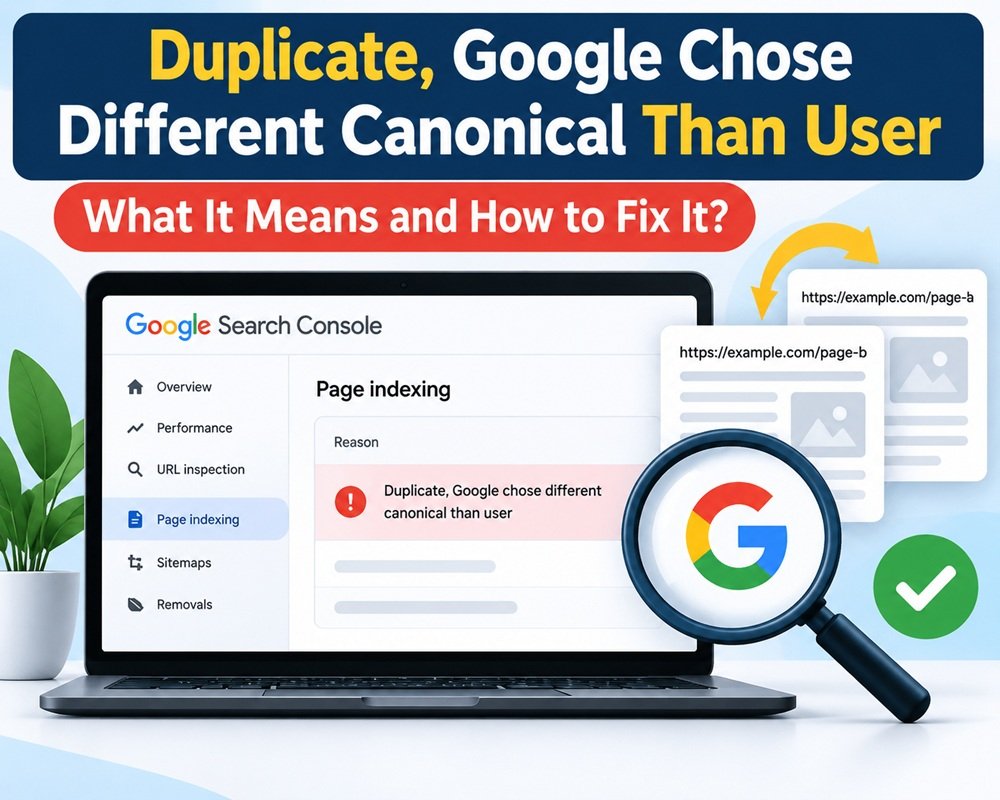



If you use Google Search Console to monitor your website, you may come across this message:
“Duplicate, Google chose different canonical than user”
It appears under the Page indexing report and means Google found your page similar or duplicate to another URL. You may have specified one URL as the canonical version, but Google decided that a different URL is a better representative of the content.
As a result, the URL you inspected is currently not indexed. Google has generally indexed the URL it selected as the canonical instead.
What Does It Mean?
A canonical URL is the preferred version of a page when multiple URLs contain the same or very similar content.
For example, suppose you have:
example.com/seo-guideexample.com/seo-guide/example.com/seo-guide?source=facebook
You may tell Google that example.com/seo-guide is the preferred URL using a canonical tag.
However, Google does not have to follow that choice. The canonical tag is a strong signal, not an absolute instruction. Google considers other signals before selecting the URL it believes is the best version.
Why Does Google Choose a Different Canonical?
There can be several reasons.
1. Similar or Duplicate Content
If two pages contain almost the same information, Google may consider them duplicates and select one URL for indexing.
2. Incorrect Canonical Tag
Your canonical tag may point to a URL that doesn’t closely match the content of the current page.
For example:
<link rel="canonical" href="https://example.com/page-a/">If the page is actually about a completely different topic from Page A, Google is unlikely to accept that canonical.
3. Internal Links Point to Another URL
If most of your internal links point to URL B while the canonical tag on the page points to URL A, Google receives conflicting signals.
Your internal links should consistently use the preferred canonical URL.
4. Sitemap Contains a Different URL
Your XML sitemap is another canonicalization signal. If your sitemap lists URL B but your canonical tag says URL A, Google may have difficulty determining which version you prefer.
5. Redirects
Redirects are a strong canonicalization signal. If one URL permanently redirects to another URL, Google can use that redirect when determining the canonical version.
6. HTTP, HTTPS, www and Non-www Versions
Technical URL variations can also create duplicate versions, such as:
http://example.comhttps://example.comhttps://www.example.comhttps://example.com
Your preferred version should be consistent throughout the website.
How to Fix It
The first step is not to immediately change the canonical tag.
First, find out which URL Google selected.
Step 1: Inspect the URL
Open Google Search Console → URL Inspection and enter the affected URL.
Look for:
- User-declared canonical
- Google-selected canonical
Google recommends comparing these two URLs to understand why it selected a different version.
Step 2: Decide Which URL Should Actually Be Canonical
Ask yourself:
Is Google’s selected URL better than my preferred URL?
If Google’s URL is the correct version, you may not need to fix anything. Your goal should not be to force every URL into Google’s index. Google generally wants the canonical version of duplicate pages indexed.
If your URL is the correct one, continue with the following checks.
Step 3: Check the Canonical Tag
Make sure the page contains the correct canonical URL.
For example:
<link rel="canonical" href="https://example.com/seo-guide/">Ideally, the canonical URL should be the preferred, indexable version of the page and should normally use a self-referencing canonical.
Step 4: Make the Content More Distinct
If Google considers your page a duplicate of another page, simply changing the canonical tag may not solve the problem.
Check the two pages and ask:
- Do they target the same search intent?
- Is the main content almost identical?
- Are they covering the same topic?
- Could one page be removed or merged?
If two pages serve essentially the same purpose, consider consolidating them.
If both pages genuinely need to exist, make their content and search intent sufficiently different.
Step 5: Check Internal Links
Review your menus, breadcrumbs, related posts and other internal links.
Use your preferred canonical URL consistently instead of linking to multiple versions of the same page.
Step 6: Check Your XML Sitemap
Make sure the sitemap contains the URL you want Google to consider canonical.
Avoid including unnecessary duplicate URLs in the sitemap.
Step 7: Check Redirects and URL Variations
Look for unnecessary versions caused by:
- HTTP vs HTTPS
- www vs non-www
- trailing slashes
- URL parameters
- duplicate category URLs
- tracking parameters
- old URLs
- alternative URL structures
If an old URL should no longer exist, a permanent redirect to the preferred URL can be a better solution.
Should You Request Indexing?
After correcting the problem, you can use URL Inspection → Request Indexing.
However, requesting indexing does not override Google’s canonicalization decision. Google will recrawl the page and reconsider the signals it finds.
So, don’t treat “Request Indexing” as the actual fix. Fix the underlying canonicalization or duplicate-content issue first.
What If Google Selected the Correct URL?
This is important.
The message “Duplicate, Google chose different canonical than user” does not always mean something is broken.
If Google selected the URL you actually want indexed, there may be nothing you need to change.
Google’s documentation explains that duplicate or alternate URLs generally don’t need to be indexed individually. The important thing is that the correct canonical version is indexed.
Quick Checklist
Before considering the issue fixed, check:
- Google-selected canonical is the URL you want
- User-declared canonical is correct
- Canonical URL returns a 200 status
- Canonical page is indexable
- No conflicting redirects exist
- Internal links use the preferred URL
- XML sitemap contains the preferred URL
- Duplicate pages are removed, redirected or differentiated
- HTTPS and URL formats are consistent
Final Thoughts
“Duplicate, Google chose different canonical than user” is better understood as a canonicalization disagreement rather than a simple indexing error.
Google is telling you that it found another URL that it considers a better representative of the content.
Start with the Google-selected canonical in URL Inspection. If Google selected the wrong URL, align your canonical tags, internal links, sitemap, redirects and content. If Google selected the URL you actually want indexed, the Search Console status may not require any action.
The goal isn’t to get every duplicate URL indexed. The goal is to make sure the right version of your content becomes the canonical page and appears in Google Search.



Leave a Reply