


If you run a website and care about organic traffic, Google Search Console (GSC) is one of the first tools you should set up.
It is free, comes directly from Google, and gives you information that you cannot get simply by searching for your own website on Google. You can see which search queries bring visitors, which pages are indexed, how Google crawls your site, whether technical problems are preventing pages from appearing in search, and much more.
But there is one common misunderstanding: Search Console is not a tool that automatically improves your rankings. It gives you data and diagnostic information that helps you understand how Google sees your website and decide what needs to be improved.
In this guide, we’ll cover what Google Search Console is, how to set it up, how to use its main reports, and how to troubleshoot some of the most common GSC errors.
What Is Google Search Console?
Google Search Console is a free service from Google that helps website owners monitor, maintain, and troubleshoot their site’s presence in Google Search.
It provides information about:
- Google Search clicks and impressions
- Search queries
- Average position
- Click-through rate (CTR)
- Indexed and non-indexed pages
- Sitemap status
- Crawling and indexing problems
- Mobile usability and page experience signals where applicable
- Structured-data and enhancement reports
- Manual actions
- Security issues
- Links
- Core Web Vitals
- Search performance by country and device
Google describes Search Console as a tool for understanding how your site performs in Google Search and diagnosing problems that can affect its visibility.
Why Is Google Search Console Important for SEO?
SEO is not only about keywords and backlinks.
A page can have excellent content but still struggle in Google if:
- Google cannot crawl it.
- The page is blocked by
robots.txt. - A
noindexdirective is present. - The wrong canonical URL is being selected.
- The page returns a server error.
- Important pages are not internally linked.
- Google discovers duplicate versions of the same content.
- A website migration creates redirect problems.
Search Console helps you identify many of these problems.
It also provides actual search-performance data. Instead of guessing which keywords Google associates with your website, you can look at the queries, pages, countries, devices and search appearances shown in your account.
Google Search Console vs Google Analytics
These two tools are often confused because both are important for SEO.
| Google Search Console | Google Analytics |
|---|---|
| Focuses on Google Search | Focuses on website/app behavior |
| Shows Google Search clicks | Shows website sessions/users |
| Shows search queries | Shows traffic sources |
| Shows impressions | Shows engagement and conversions |
| Shows average search position | Shows behavior after visitors arrive |
| Shows indexing information | Does not provide GSC-style indexing reports |
| Helps diagnose Google Search issues | Helps analyze visitor behavior |
A simple way to remember it:
Search Console tells you how people find your website through Google.
Analytics tells you what they do after they arrive.
For serious SEO work, using both is much more useful than relying on either one alone.
How to Set Up Google Search Console
Setting up GSC is relatively straightforward.
Step 1: Open Google Search Console
Go to Google’s Search Console and sign in with your Google account.
You can then add your website as a property.
Google currently supports two main website property types:
- Domain property
- URL-prefix property
Step 2: Choose a Property Type
Domain Property
A Domain property covers the entire domain, including:
- HTTP
- HTTPS
- www
- non-www
- subdomains
For example:
example.com
A Domain property requires DNS verification.
For most website owners, this is the preferred option because it provides a broader view of the domain.
URL-prefix Property
A URL-prefix property covers only URLs beginning with the specified prefix.
For example:
It does not automatically include:
http://example.com/
or another subdomain.
URL-prefix properties support several verification methods.
Step 3: Verify Website Ownership
Google needs to confirm that you control the website.
Depending on the property type and your setup, verification can be done through methods such as:
- DNS record
- HTML file
- HTML meta tag
- Google Analytics
- Google Tag Manager
For a Domain property, DNS verification is required.
DNS Verification
Your domain provider may be something like:
- GoDaddy
- Namecheap
- Cloudflare
- Hostinger
- Bluehost
Google will provide a TXT record.
You add that record to your domain’s DNS settings and then return to Search Console to verify the property.
Important: Don’t delete the verification record after successful verification unless you understand the consequences, because Google can use it to maintain ownership verification.
Step 4: Submit Your XML Sitemap
After verification, submit your XML sitemap.
Usually, the sitemap is located at something like:
https://example.com/sitemap.xml
WordPress websites may generate a sitemap automatically through WordPress or an SEO plugin.
In Search Console:
Indexing → Sitemaps
Enter your sitemap URL and submit it.
A sitemap helps Google discover URLs on your website. However, submitting a sitemap does not guarantee that every URL will be indexed. Google decides which URLs it indexes based on several factors.
A Good Sitemap Should:
- Contain canonical URLs.
- Use correct HTTPS URLs.
- Avoid URLs you don’t want indexed.
- Avoid broken URLs.
- Avoid unnecessary redirects.
- Be accessible to Google.
- Be updated as your website changes.
Understanding the Search Console Performance Report
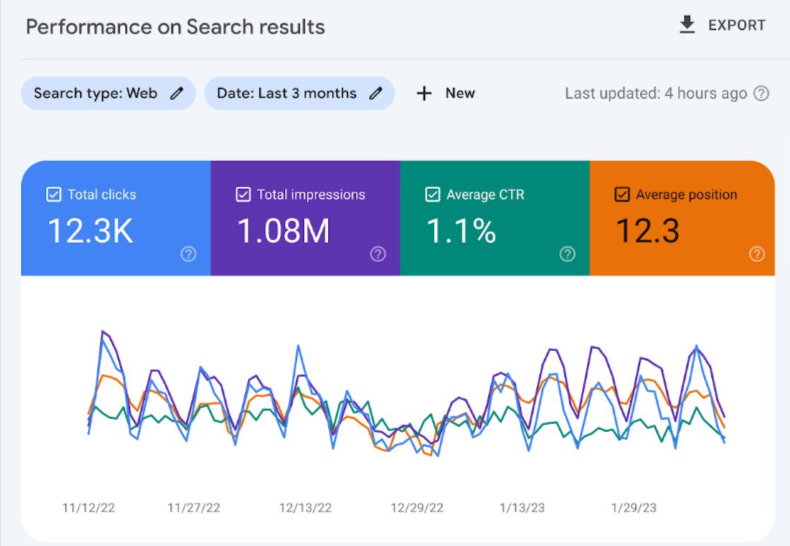
The Performance report is probably the section you’ll use most often.
It tells you how your website performs in Google Search.
The main metrics are:
Clicks
The number of times users clicked your website from Google Search.
Impressions
The number of times a link to your website appeared in Google Search.
CTR
Click-through rate is calculated as:
Clicks ÷ Impressions × 100
Average Position
This represents the average position of your site’s topmost result across impressions. It should not be treated as an exact ranking position for every search.
Google recommends looking at trends and multiple metrics rather than treating average position as the only SEO measurement.
How to Use the Performance Report for SEO
This is where Search Console becomes much more useful.
1. Find Keywords You Are Already Ranking For
Go to:
Performance → Search results → Queries
Look for keywords that have:
- High impressions
- Reasonable position
- Low or moderate CTR
These can become excellent optimization opportunities.
For example:
| Query | Impressions | CTR | Position |
|---|---|---|---|
| free seo tools | 15,000 | 1.8% | 8.4 |
| seo tools for beginners | 7,500 | 2.4% | 11.2 |
| keyword research tools | 5,900 | 3.1% | 9.6 |
Instead of immediately creating another article, you might improve the existing page that is already receiving impressions.
2. Find Pages With High Impressions but Low CTR
Go to:
Performance → Pages
Sort by impressions and look for pages with lots of impressions but relatively few clicks.
This can indicate that your page is appearing in search but isn’t attracting enough clicks.
Possible areas to review include:
- Title
- Meta description
- Search intent
- Content relevance
- SERP competition
- Rich-result eligibility
- Brand positioning
Google specifically recommends using low-CTR pages as an opportunity to review titles, descriptions and content alignment.
3. Find Pages That Are Losing Traffic
Compare two periods, such as:
Last 3 months vs previous 3 months
Look for pages where:
- Clicks decreased
- Impressions decreased
- CTR decreased
- Average position changed significantly
Then investigate why.
A traffic decline can be caused by many things, including:
- Search demand changes
- Algorithm changes
- Competitor improvements
- Content becoming outdated
- Technical problems
- Indexing problems
- Seasonality
Don’t automatically assume that every traffic drop is caused by a Google algorithm update.
4. Analyze Search Queries by Page
One of my favorite ways to use GSC is to connect queries with individual pages.
For example, suppose you have an article about:
“Free SEO Keyword Research Tools”
Search Console might show that Google is displaying the page for:
- free keyword research tools
- SEO keyword tools
- keyword research tools
- free SEO tools
- keyword planner alternatives
This gives you real information about how Google understands the page.
You can then decide whether the content already covers those topics or whether additional sections would make the article more useful.
Understanding the Page Indexing Report
The Page Indexing report is one of the most important sections for technical SEO.
It shows which URLs Google has indexed and which known URLs are not indexed, along with reasons.
You may see categories such as:
- Indexed
- Not indexed
- Server error
- Redirect error
- Blocked by robots.txt
- Excluded by
noindex - Duplicate without user-selected canonical
- Crawled – currently not indexed
- Discovered – currently not indexed
- Soft 404
But here’s an important point:
“Not indexed” does not always mean “there is an error.”
Google itself says that some URLs should not be indexed.
For example:
- Duplicate URLs
- Redirect URLs
- Filtered pages
- Pages intentionally marked
noindex - Pages blocked intentionally
- Thin utility pages
The goal isn’t to make the Search Console graph show 100% indexed URLs.
The goal is to make sure your important, canonical pages are indexed.
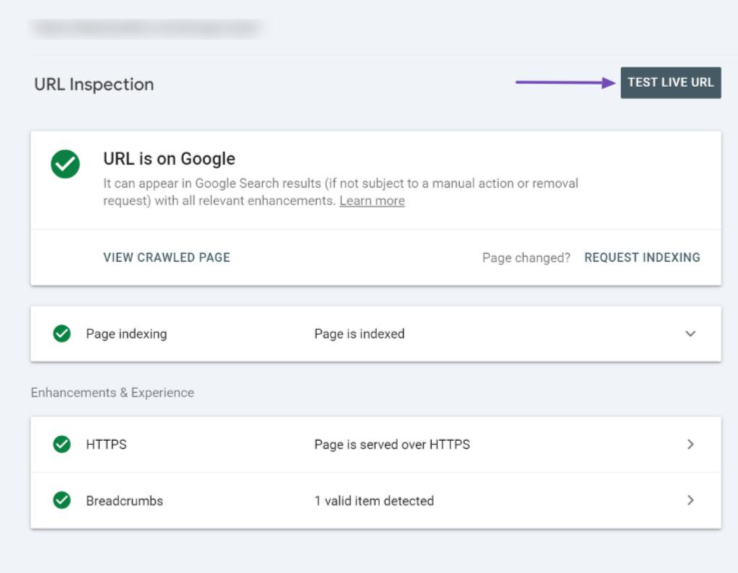
What Is the URL Inspection Tool?
The URL Inspection tool lets you investigate a specific URL.
Enter a URL into the inspection field and Search Console can show information about Google’s understanding of that page.
You can use it to investigate:
- Whether a page is indexed
- Whether Google can crawl it
- Canonical information
- Indexing issues
- Last crawl information
- Live URL status
You can also test the live version of the URL and request indexing when appropriate.
How to Request Indexing
Suppose you publish a new article.
You can:
- Open Search Console.
- Enter the complete URL in URL Inspection.
- Let Google inspect the URL.
- If appropriate, click Request Indexing.
This tells Google that you would like the URL to be crawled.
But don’t expect instant indexing.
Google explicitly notes that indexing isn’t instant, even when you submit a crawl request.
Also, repeatedly requesting indexing is not an SEO strategy. Fix the underlying problem if a page isn’t being indexed.
Common Google Search Console Errors and How to Fix Them
Now let’s get to the part that causes the most confusion.
1. URL is not on Google
This simply means the URL isn’t currently indexed.
Use URL Inspection to find out why.
Possible causes include:
noindex- robots.txt blocking
- canonicalization
- duplicate content
- crawl problems
- server errors
- Google hasn’t discovered or processed the page yet
Don’t make changes until you understand the specific reason.
2. Crawled – Currently Not Indexed
This means Google crawled the URL but did not currently add it to the index.
It does not automatically mean there is a technical error.
Review:
- Content quality
- Search intent
- Originality
- Internal links
- Duplicate content
- Canonical settings
- Overall usefulness of the page
If the page is important, improve it rather than simply requesting indexing repeatedly.
3. Discovered – Currently Not Indexed
Google knows about the URL but hasn’t crawled it yet.
Possible causes include:
- Large website
- Weak internal linking
- Crawl prioritization
- Too many low-value URLs
- Technical issues
- Recently published content
Make sure important pages are:
- Linked from relevant pages
- Included in your XML sitemap
- Accessible to Googlebot
- Not blocked by robots.txt
- Not marked
noindex
4. URL Blocked by robots.txt
Your robots.txt file is preventing Google from crawling the URL.
Check:
https://example.com/robots.txt
Look for rules such as:
User-agent: *
Disallow: /blog/
If /blog/ contains pages you want Google to crawl, this rule could be a problem.
However, don’t remove robots.txt rules blindly.
Some sections—such as private, administrative or unnecessary crawl areas—may be intentionally blocked.
Google notes that robots.txt blocking is a crawling control and isn’t the same thing as using noindex to prevent indexing.
5. URL Marked Noindex
A noindex directive tells search engines not to index the page.
It can appear in HTML:
<meta name="robots" content="noindex">or through an HTTP response header.
If you want the page indexed, remove the noindex directive.
If you don’t want the page indexed, then this isn’t necessarily an error.
Google recommends checking the live URL and confirming whether the noindex directive is actually present.
6. Page with Redirect
Redirect URLs generally aren’t supposed to be indexed.
For example:
example.com/old-page
redirects to:
example.com/new-page
Google should normally index the destination rather than the redirecting URL.
Check for:
- Incorrect redirect chains
- Redirect loops
- Wrong destination
- Redirecting URLs included in your sitemap
7. Redirect Error
Google can report redirect errors when it encounters problems such as:
- Redirect loops
- Long redirect chains
- Invalid redirect URLs
- Redirect destinations that cannot be reached
For example:
Page A → Page B → Page C → Page D
If you can simplify that to:
Page A → Page D
you have a cleaner setup.
8. Server Error (5xx)
A 5xx error means the server couldn’t successfully provide the requested page.
Common examples include:
- 500 Internal Server Error
- 502 Bad Gateway
- 503 Service Unavailable
- 504 Gateway Timeout
If a large number of important pages suddenly show server errors, investigate the hosting environment immediately.
Possible causes include:
- Hosting problems
- Server overload
- Plugin conflicts
- Application errors
- Database problems
- CDN configuration
- Firewall/security rules
9. Soft 404
A soft 404 happens when a page appears to Google as though it doesn’t contain a real resource, but the server doesn’t return an appropriate 404 response.
For example, you might have:
example.com/product-that-does-not-exist
The page may display:
Sorry, this product is unavailable.
But the server returns HTTP 200 instead of 404.
For genuinely missing pages, Google recommends returning an appropriate 404 response rather than creating a soft 404 situation.
10. Duplicate Without User-Selected Canonical
This one is particularly common on larger websites.
Suppose you have:
example.com/seo-guide
and:
example.com/seo-guide?utm_source=newsletter
They may represent essentially the same content.
Canonicalization helps search engines understand which URL represents the preferred version.
You should:
- Choose the preferred URL.
- Use the canonical tag correctly.
- Keep internal links consistent.
- Use the canonical URL in your sitemap.
- Avoid unnecessary URL variations.
Remember that a duplicate being excluded from the index isn’t automatically a problem. Google expects duplicate URLs to exist on many websites.
How to Fix GSC Errors Properly
Don’t look at Search Console errors as a checklist where every red number must become zero.
Instead, use this process:
Step 1: Identify the issue
Open:
Indexing → Pages
or the relevant report.
Step 2: Understand the reason
Click the issue.
Read Google’s explanation before changing anything.
Step 3: Inspect sample URLs
Open affected URLs and use URL Inspection.
Step 4: Test the live URL
Check what Google can currently access.
Step 5: Fix the underlying problem
Depending on the issue, you may need to change:
- robots.txt
- noindex settings
- canonical tags
- redirects
- internal links
- sitemap
- server configuration
- page content
Step 6: Validate the fix
After fixing all affected URLs, you can use Validate Fix where available.
Google then checks affected URLs over time. Validation can take days or longer, and Google says it can sometimes take around two weeks or more.
Don’t Panic When You See Thousands of “Not Indexed” URLs
This is especially important for e-commerce websites.
Imagine a website with:
- 50,000 product URLs
- Filter URLs
- Sort URLs
- Search URLs
- Tracking parameters
- Pagination
- Duplicate URLs
You may see a huge number of non-indexed URLs.
That doesn’t automatically mean your SEO is broken.
Ask:
Are my important canonical pages indexed?
That’s the question that matters.
Google specifically advises site owners not to expect every URL to be indexed.
How to Use Search Console for Content Strategy
Search Console isn’t just a technical SEO tool.
It can also become a content research tool.
Find “Almost Ranking” Keywords
Look for keywords where your page has an average position around:
8–20
These can be interesting pages to review.
Check:
- Does the article fully answer the query?
- Is the search intent satisfied?
- Are important subtopics missing?
- Can the introduction be improved?
- Is the title clear?
- Are internal links relevant?
- Are there stronger competing pages?
Don’t blindly add keywords. Improve the page for the reader first.
Find New Content Ideas
Search Console can reveal queries you weren’t specifically targeting.
For example, you publish:
“Google Analytics Guide”
But GSC shows impressions for:
- Google Analytics setup
- GA4 guide for beginners
- Google Analytics reports
- GA4 traffic analysis
- how to use Google Analytics
These queries can help you identify sections to expand or future articles to create.
Find Content That Needs Updating
Compare your current performance with an earlier period.
Look for pages with:
- Falling impressions
- Falling clicks
- Declining CTR
- Changes in query visibility
- Reduced search appearance
Then review the article.
For informational websites, older statistics, screenshots, examples, tools and recommendations can quickly become outdated.
Check Mobile Performance
Search Console allows you to segment performance by device.
You can compare:
- Desktop
- Mobile
- Tablet
If a page performs well on desktop but significantly differently on mobile, investigate the page experience and content presentation.
Don’t assume the difference is automatically a technical SEO problem, though. Search behavior itself can vary significantly by device.
Check Country-Level Performance
The Countries report can help identify where your organic visibility comes from.
For example, you may discover that your site receives impressions from:
- United States
- India
- United Kingdom
- Canada
- Australia
This can be useful when planning international SEO and localized content.
Monitor Core Web Vitals
Search Console also provides Core Web Vitals reporting.
Core Web Vitals focus on aspects of page experience related to:
- Loading performance
- Responsiveness
- Visual stability
If Search Console reports problems, don’t simply install another optimization plugin and assume the issue is solved.
Look at the affected URLs and identify the actual technical cause.
Possible causes include:
- Large images
- Excessive JavaScript
- Slow server response
- Third-party scripts
- Layout shifts
- Poorly optimized themes/plugins
Check Manual Actions
Manual actions are different from ordinary technical errors.
If Google determines that a site has violated its spam policies, a manual action may be applied.
Check:
Security & Manual Actions → Manual Actions
If you see a manual action, read the specific reason carefully and follow Google’s remediation guidance.
Check Security Issues
Also check:
Security & Manual Actions → Security Issues
Security problems can include compromised websites or other issues that Google identifies as potentially harmful.
If you find a security issue, treat it as a priority rather than a normal SEO task.
Search Console Links Report
Search Console also provides information about links pointing to your site.
You can examine:
- Top linked pages
- Top linking sites
- Top linked pages internally
- Internal linking patterns
Use this information as a reference—not as a reason to chase an arbitrary number of backlinks.
For SEO, the relevance and usefulness of links matter far more than simply collecting large numbers of URLs.
Common GSC Mistakes to Avoid
Mistake 1: Checking Search Console Every Day
SEO data naturally fluctuates.
Daily changes don’t necessarily mean something is wrong.
Look at meaningful time periods and trends.
Mistake 2: Trying to Index Every URL
You don’t need every URL indexed.
Focus on valuable, canonical pages.
Mistake 3: Requesting Indexing Repeatedly
Requesting indexing doesn’t fix:
- Thin content
- Duplicate content
- Bad canonicalization
- Noindex directives
- Poor internal linking
- Server problems
Fix the actual issue.
Mistake 4: Treating Average Position as an Exact Ranking
Average position is an aggregated metric, not a guarantee that your page appears at exactly that position every time someone searches.
Mistake 5: Making Changes Without Understanding the Error
If Search Console says:
“Blocked by robots.txt”
don’t immediately remove the entire robots.txt file.
If it says:
“Duplicate”
don’t immediately delete the page.
First understand why Google classified the URL that way.
A Simple Monthly Google Search Console SEO Routine
If you don’t have time to analyze GSC every day, this simple routine can work well.
Weekly
Check:
- Search clicks
- Impressions
- Major traffic drops
- Indexing issues
- New technical errors
- Manual actions/security issues
Monthly
Analyze:
- Top-performing pages
- Losing pages
- Top queries
- High-impression/low-CTR pages
- New search queries
- Country performance
- Device performance
- Indexing trends
- Core Web Vitals
- Internal links
After Major Website Changes
Always check Search Console after:
- Website redesign
- URL structure changes
- Domain migration
- HTTPS migration
- CMS migration
- Major plugin/theme changes
- Large-scale content updates
- Robots.txt changes
- Sitemap changes
Google recommends checking indexing and access issues when diagnosing significant traffic changes.
Final Thoughts
Google Search Console is much more than a tool for checking whether your website is indexed.
Used properly, it can become a regular part of your SEO workflow.
It can help you answer questions such as:
- Is Google discovering my pages?
- Which pages are indexed?
- Which pages aren’t indexed—and why?
- Which keywords are generating impressions?
- Which pages are getting clicks?
- Which pages have poor CTR?
- Has organic visibility changed?
- Are there crawling or server problems?
- Is Google seeing the correct canonical URLs?
- Are there security or manual-action issues?
- Which content deserves an update?
The biggest mistake is trying to fix every warning you see.
Instead, understand what Google is reporting, why it is reporting it, and whether the issue actually affects an important URL.
That mindset makes Search Console much easier to use—and much more valuable for SEO.



Leave a Reply