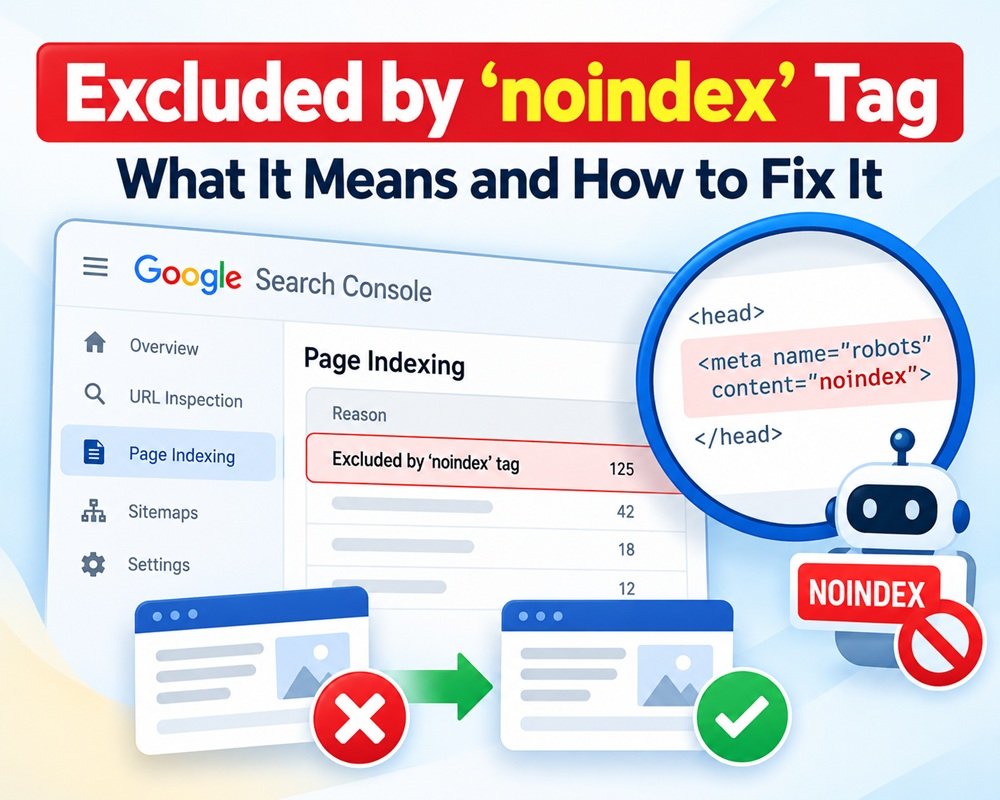



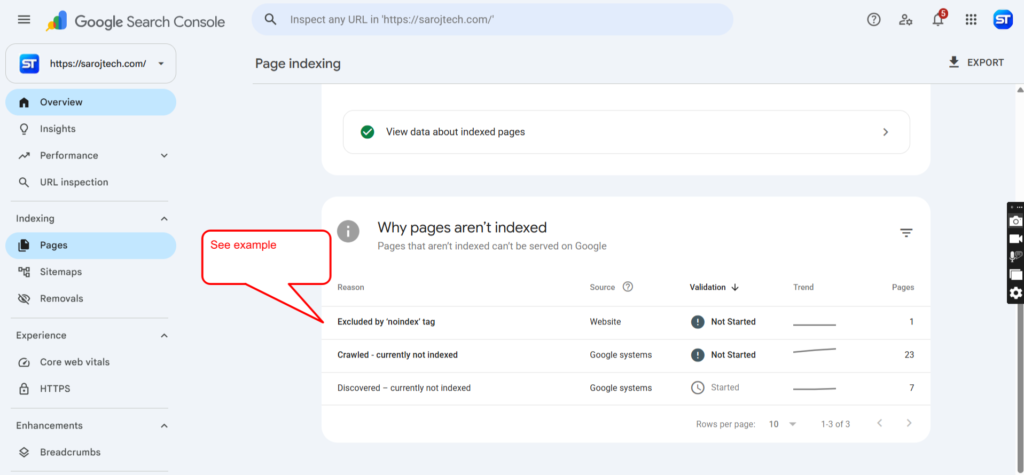
If you check the Page Indexing report in Google Search Console and see “Excluded by ‘noindex’ tag,” it means Google discovered the URL but was instructed not to index that page.
This is not necessarily a problem. In many cases, noindex is intentionally used for pages that should not appear in Google Search. The problem starts when an important page, such as a blog post, service page, or product page, has accidentally been marked as noindex.
What Does “Excluded by ‘noindex’ Tag” Mean?
A noindex directive tells search engines:
Do not include this page in search results.
It is commonly added through an HTML meta tag such as:
<meta name="robots" content="noindex">Google can also receive a similar instruction through an HTTP X-Robots-Tag response header.
When Google crawls the page and finds this instruction, it normally keeps the URL out of its search index.
So, if Search Console reports:
Excluded by ‘noindex’ tag
Google is basically saying: “I found this page, but the page tells me not to index it.”
Is This a Google Search Console Error?
Not necessarily.
For example, you may intentionally want these pages excluded:
- Login pages
- Thank-you pages
- Internal search-result pages
- Certain filtered or parameter URLs
- Staging or testing pages
- Private account pages
- Duplicate or low-value pages
In these situations, seeing the noindex exclusion in Search Console can be completely normal.
The real question is:
Should this particular URL be indexed?
If the answer is yes, then you need to remove the noindex directive.
Why Does a Page Get a Noindex Tag?
There are several common reasons.
1. SEO Plugin Settings
WordPress SEO plugins can add noindex through their settings.
For example, a page may accidentally be configured as:
Allow search engines to show this page → No
Check the SEO settings of the affected page.
2. Website or Theme Configuration
Sometimes a developer or theme adds a robots directive globally or to a particular page template.
This can result in important pages receiving a noindex tag without the site owner noticing.
3. Development or Staging Settings
A website may have been configured not to appear in search engines during development.
If those settings remain active after the site goes live, important pages can continue carrying noindex.
4. Accidental Page-Level Setting
A single blog post or page may have been marked noindex by mistake.
This is particularly common when SEO settings are changed while editing content.
5. HTTP Header
The noindex instruction does not always appear in the HTML.
A server can send it through an HTTP response header:
X-Robots-Tag: noindexIf you cannot find a noindex meta tag in the page source, this is worth checking.
How to Fix “Excluded by ‘noindex’ Tag”
If the page should appear in Google Search, follow these steps.
Step 1: Open the URL in Google Search Console
Go to URL Inspection and enter the affected URL.
Check the indexing information and inspect the live URL.
Google’s documentation recommends using URL Inspection to check how Google sees a page before requesting another crawl.
Step 2: Check the Page’s Noindex Setting
Open the page in your CMS.
If you’re using WordPress, check the SEO plugin settings for that specific page.
Make sure the page is configured to allow search engines to index it.
Step 3: Check the HTML Source
View the page source and search for:
noindexLook for something similar to:
<meta name="robots" content="noindex">If the page should be indexed, remove the noindex instruction.
Step 4: Check the HTTP Header
If there is no noindex meta tag, check the server response headers.
Look for:
X-Robots-Tag: noindexIf it exists, the server configuration, plugin, CDN, or application may be responsible.
Step 5: Check Robots.txt Separately
Do not confuse noindex with robots.txt.
robots.txt controls whether crawlers can access a URL, while noindex tells Google not to include an accessible page in its search index.
If you want Google to process a noindex directive, the page must be accessible to Googlebot. Blocking the URL in robots.txt can prevent Google from seeing the noindex instruction.
Step 6: Test the Live URL
After removing noindex, return to Google Search Console and use URL Inspection → Test Live URL.
Confirm that the page is now accessible and no longer carrying the unwanted noindex directive.
Step 7: Request Indexing
If everything looks correct, click Request Indexing.
Google can then recrawl the page. However, requesting indexing does not guarantee immediate indexing. Google needs to recrawl and process the page first, which can take time.
Don’t Remove Noindex From Every URL
This is an important SEO point.
You should not try to make every URL on your website indexable.
Some pages are better kept out of Google’s index.
For example, you may intentionally use noindex for:
- Login and account pages
- Thank-you pages
- Internal search pages
- Certain duplicate pages
- Private or temporary pages
- Low-value utility pages
The goal is not to have zero “Excluded by noindex” URLs in Search Console.
The goal is to make sure the right pages are indexed and the right pages are excluded.
What If the Page Is in the XML Sitemap?
If an important page is marked noindex but is also included in your XML sitemap, review the configuration.
Generally, your sitemap should contain the URLs you want search engines to discover and index. If a URL is intentionally noindex, there is usually little reason to keep it in the sitemap.
Remove unnecessary noindex URLs from the sitemap after deciding whether they should actually be indexed.
Quick Checklist
If an important page shows Excluded by ‘noindex’ tag, check:
- Is the page supposed to appear in Google?
- Is
noindexpresent in the HTML? - Is
X-Robots-Tag: noindexbeing sent? - Did an SEO plugin add the directive?
- Did the CMS or theme add it?
- Is the page blocked by
robots.txt? - Is the correct canonical URL being used?
- Is the URL included unnecessarily in the sitemap?
- Does the live URL test show the correct indexing status?
- Have you requested indexing after fixing it?
Final Thoughts
“Excluded by ‘noindex’ tag” does not automatically mean something is broken.
It simply means Google found a noindex instruction and excluded that URL from its index.
If the exclusion is intentional, you can usually leave it alone.
If an important page is affected, find where the noindex instruction is coming from, remove it, test the live URL in Google Search Console, and then request indexing.
The key is simple: don’t focus on removing every exclusion. Focus on making sure Google can index the pages that actually matter to your SEO strategy.



Leave a Reply