


If your website pages are not appearing in Google search results, Google may not have discovered them, crawled them, or considered them eligible for indexing. Sometimes, Google has already crawled a page but has chosen not to include it in its index.
Google Search Console (GSC) helps you identify these issues through the Page Indexing report. However, every indexing status does not indicate an error that needs fixing.
In this guide for SarojTech, we’ll explain the common reasons pages aren’t indexed, what each GSC status means, and how to fix the problem.
What Does “Pages Aren’t Indexed” Mean in GSC?
Indexing is the process through which Google analyzes a page and stores it in its search index so it can appear in search results.
The process generally involves three stages:
- Discovery: Google finds the URL through internal links, external links, or a sitemap.
- Crawling: Googlebot visits the page and reads its content.
- Indexing: Google evaluates the page and decides whether to include it in the index.
A page can pass one stage and still fail to reach the next. Meeting Google’s technical requirements also does not guarantee indexing.
Common Google Search Console Indexing Errors and How to Fix Them
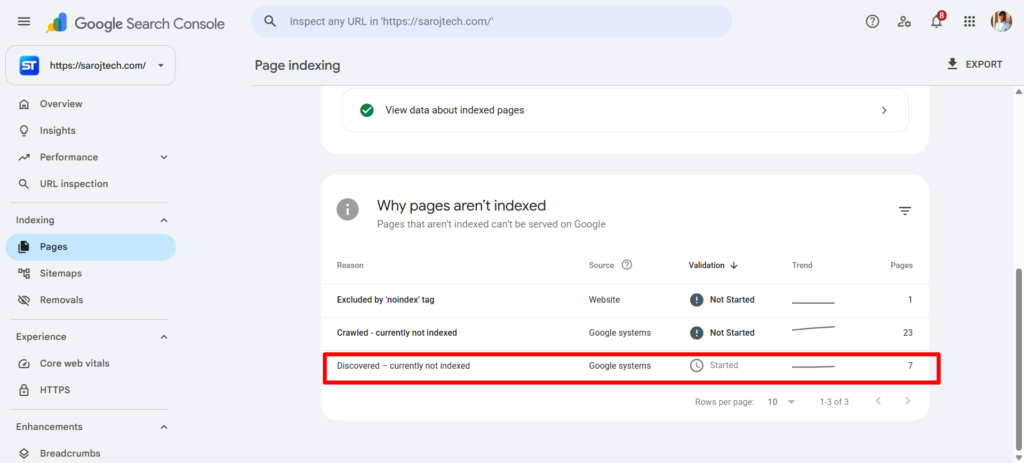
Open Google Search Console, select your website, and navigate to Indexing → Pages. Under the “Why pages aren’t indexed” section, review the reported reasons and affected URLs.
These are the common statuses you may encounter.
1. Discovered – Currently Not Indexed
Crawling pending
Google knows the URL exists but hasn’t crawled it yet. This can happen when Google delays crawling or when a website has many URLs competing for crawl resources.
How to fix it:
- Add relevant internal links from indexed pages.
- Include important URLs in your XML sitemap.
- Check server performance and crawl statistics.
- Prioritize useful pages instead of publishing large volumes of similar content.
2. Crawled – Currently Not Indexed
Indexing pending
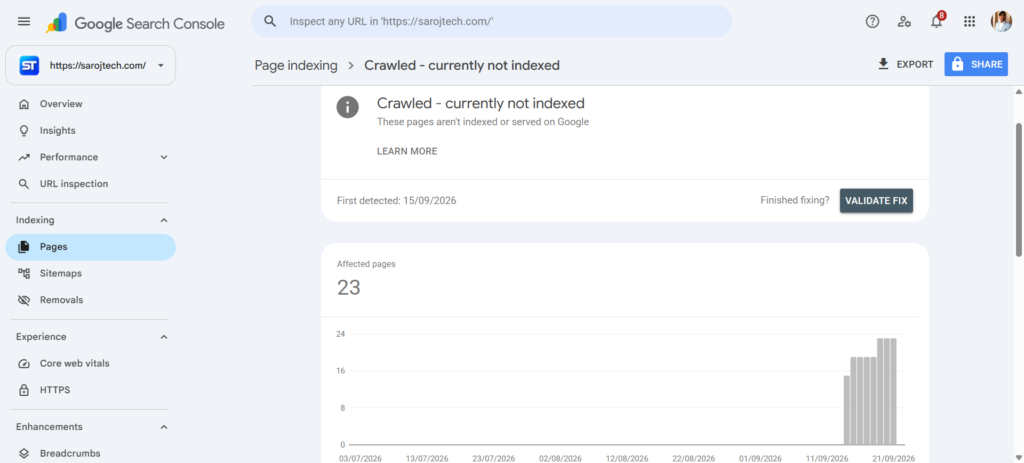
Google has crawled the page but hasn’t included it in the index. Possible reasons include limited original value, substantial content overlap, or a page that doesn’t offer enough useful information.
How to fix it:
- Add original insights, examples, and practical information.
- Check for duplicate or near-duplicate pages.
- Improve the page’s usefulness and search intent alignment.
- Verify canonical tags and indexing directives.
Request indexing after making meaningful improvements. Repeated requests alone won’t solve the underlying problem.
3. Excluded by ‘noindex’ Tag
Check configuration
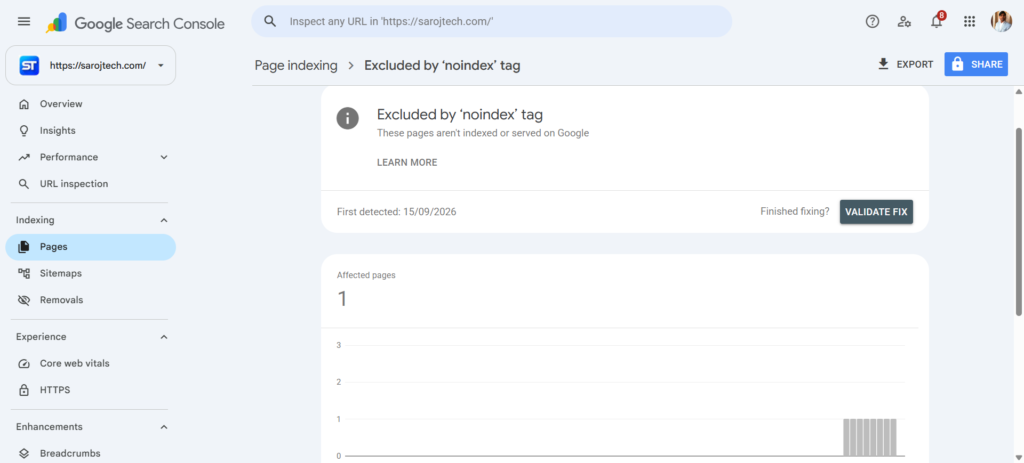
Google found a directive telling it not to index the page. This is normal for certain pages, but problematic when applied to important articles or landing pages.
How to fix it:
- Check the page’s meta robots tag.
- Review the X-Robots-Tag HTTP header if applicable.
- Remove
noindexif the page should appear in search results. - Verify that your CMS or SEO plugin isn’t adding the directive automatically.
4. Alternate Page with Proper Canonical Tag
Often expected
Google recognizes the URL as an alternative version of another page and uses the canonical URL as the preferred version.
How to fix it:
Usually, no action is needed. Confirm that the canonical URL is the version you want indexed. If the wrong page is selected, review canonical tags, internal links, redirects, and sitemap URLs.
5. Duplicate Without User-Selected Canonical
Google found duplicate content but selected a canonical URL without an explicit canonical preference from the website owner.
How to fix it:
- Identify the preferred URL.
- Add a consistent canonical tag where appropriate.
- Link internally to the preferred version.
- Include the canonical URL in the sitemap.
Avoid creating unnecessary URL variations that serve substantially the same content.
6. Blocked by robots.txt
Googlebot is prevented from crawling the URL by a rule in your robots.txt file.
How to fix it:
Review the file at https://yourdomain.com/robots.txt. Remove or modify the blocking rule if the page should be crawled.
Remember that robots.txt controls crawling, not indexing directly. A blocked URL may still appear in search results under certain circumstances.
7. Not Found (404)
Google attempted to access a URL but received a not-found response.
How to fix it:
- Restore the page if it was removed accidentally.
- Redirect it to a relevant replacement if one genuinely exists.
- Update internal links and remove the URL from your sitemap.
- Leave a legitimate 404 or return 410 for permanently removed content without a suitable replacement.
Not every 404 needs fixing. Deleted pages with no replacement can correctly return a 404 response.
8. Server Error (5xx)
Your server returned an error when Google tried to crawl the page. Persistent server failures can prevent successful crawling and indexing.
How to fix it:
- Check hosting resources, server logs, and application errors.
- Review CDN and firewall rules that might interfere with Googlebot.
- Ensure important pages return HTTP 200 when working correctly.
- Investigate recurring errors rather than relying only on retrying indexing requests.
9. Page with Redirect / Redirect Error
A redirected URL generally isn’t indexed as a separate page. A redirect error, however, can indicate a redirect loop, a long redirect chain, or a broken destination.
How to fix it:
- Check the complete redirect path.
- Remove redirect loops and unnecessary hops.
- Update internal links to point directly to the final URL.
- Confirm that the destination returns a successful response.
10. Soft 404
A page appears to be missing or contain little meaningful content, but the server returns a successful response instead of an appropriate not-found status.
How to fix it:
- Add substantial, relevant content if the page should exist.
- Return a genuine 404 or 410 for removed or nonexistent pages.
- Redirect only when a relevant replacement is available.
- Check whether empty category pages or broken templates are causing the issue.
These status names and troubleshooting approaches are based on Google’s Search Console and Search Central documentation.
Other Reasons Your Pages May Not Get Indexed
Even if none of the statuses above explains the problem, check the following factors.
- Weak internal linking: Important pages may be difficult for Google to discover if they aren’t linked from other relevant pages.
- Thin or repetitive content: Pages with little original value or substantial overlap may not be selected for indexing.
- Incorrect canonical tags: Google may identify another URL as the preferred version.
- Poor website accessibility: Login requirements, DNS failures, server downtime, or bot protection can prevent Google from accessing pages.
- JavaScript rendering issues: Important content or links may not be available as expected when Google renders the page.
- New website or recently published content: Google needs time to discover, crawl, and evaluate new URLs.
Google’s technical requirements include allowing Googlebot to access the page, serving a successful HTTP response, and providing indexable content. Meeting these requirements makes a page eligible for indexing but does not guarantee inclusion.
How to Check and Fix Indexing Issues in GSC
- Open the Page Indexing report. Go to Google Search Console → Indexing → Pages.
- Select a reported status. Review the affected URLs and determine whether the issue is intentional.
- Inspect an individual URL. Use the URL Inspection tool to review the indexed version, crawl information, and canonical details.
- Test the live URL. Check whether Google can access the current page and whether indexing is allowed.
- Fix the underlying issue. Correct technical errors, improve the content, or adjust internal links and canonical signals as needed.
- Request indexing or validate the fix. Use the relevant option in Search Console after making corrections. Monitor the results over time.
Should You Fix Every Non-Indexed URL?
No. The objective is not to get every URL indexed; it is to ensure that your important, index-worthy pages can be found and considered for indexing.
For example, duplicate URLs, intentionally excluded pages, and deleted content may correctly remain outside Google’s index. Focus on valuable blog posts, product pages, service pages, and other URLs that should appear in search results.
Also, don’t judge the site only by the total number of excluded URLs. Look for unusual changes, repeated errors across important page groups, and declines in the number of valuable indexed pages. Google’s Page Indexing report is intended to help diagnose these patterns, not to serve as a checklist where every non-indexed URL must be fixed.
Final Thoughts
When Google Search Console reports that pages aren’t indexed, start by identifying the exact status instead of immediately requesting indexing. A crawling problem requires a different solution from a duplicate-content issue or an incorrect noindex directive.
For a practical SEO audit, prioritize your most important URLs, check their technical accessibility, review content quality and canonical signals, and monitor the results after making changes.
The key takeaway: Fix the reason a page isn’t indexed, not just the status displayed in Google Search Console.



Leave a Reply